1. If you want to use the label stock, select your choices in the Label Setup Wizard - Select Stock window.
2. Click on the Next button. A new window opens to define the label dimensions manually.
3. Leave the option Page Size on 'User defined' default and check Automatic Sizing.
4. Click the Next button. A new window opens.
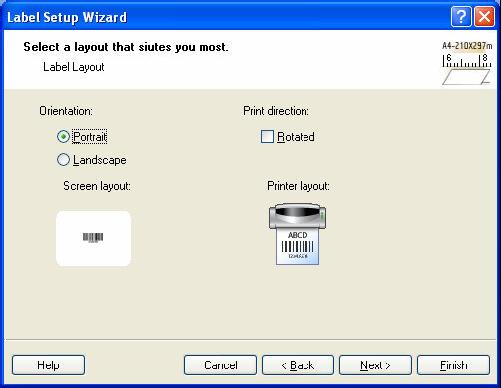
5. Select label orientation and print direction.
Selecting label layout
6. Click on the Next button. A new window opens.
7. Type 10 for label width and 7 for label height.
Defining label dimensions
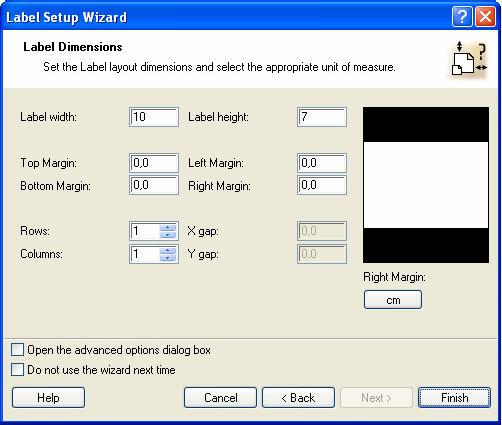
Note: To change the unit of measure from centimeters to inches or other supported units, click on the button with unit of measure below the label preview in the dialog box.
8. Click on the Finish button. A new empty label opens.
