You have placed the objects on the label. Now you want to make sure they are aligned on the horizontal center of the label. You can align objects on the label by using the Align toolbar on the right side of the working window.
To align objects on the label, do the following:
1. Select all objects on the label.
Note: The first object you select determines the alignment orientation for all selected objects.
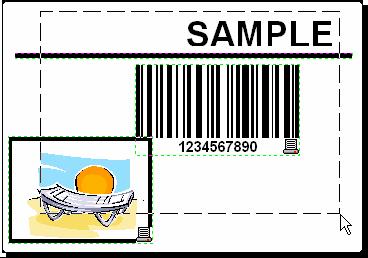
2. Choose a select arrow in the Toolbox and draw a frame around all objects to select all objects.
Selecting the objects on the label3. In the Align toolbar on the right, click on the
icon to arrange the objects.
The selected objects are rearranged and positioned on the horizontal center on the label.
Note: There are also other alignment commands available in the Align Toolbar.
Note: You can also align the objects to the label grid. The option Snap to Grid is available in the View menu. Save a Label Always save your label during the design process.
