|
Discussion:
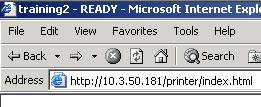
New Pages available through WebView in Firmware V60.x.x. WebView has some changes to the way a web browser session is authenticated and there are some new network related pages. Details: You can use the printer’s ZebraLink WebView web pages to view and modify many of the same parameters that appear on the printer’s front panel. Through the printer’s home page, you can also enter additional WEP encryption keys and change other parameters that are not accessible in other ways. In order to view settings and make changes you must first authenticate to the Printer via a password. The default password is 1234. To start, enter your ZebraNet Wireless Print Server's IP address in a web browser.
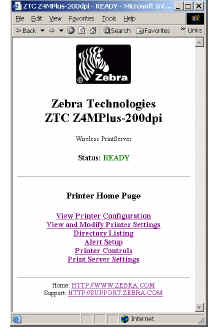
The printers Home page will be displayed:
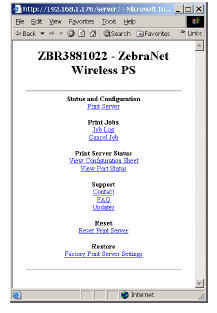
The following option do not require authentication to view the page: View Printer Configuration - displays HTML of Config label that prints when you Choose List Setup or send ~WC to printer. Directory Listing - Provides listing of any images, fonts or formats that are stored in Printers memory. Works the same as other ZebraNet Print Servers. For full details see following link Using Directory Listing Pages. Alert Setup - Works the same as other ZebraNet Print Servers. See link for Setting up Alert Messages instructions. Print Server Settings: To view Status and Configuration you will need the a user name and password. The default is admin and 1234.
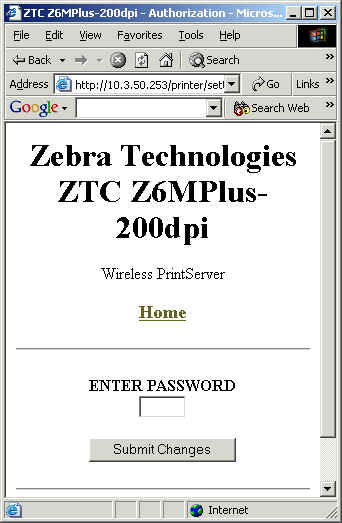
The following pages require the use of the password to authenticate to view the web pages. You only have to do this once per session. The session can time out due to inactivity. The default authentication time out is 5 minutes. To change see the ^NW ZPL Command. View and Modify Printer Settings Print Controls If you have not yet authenticated, you will see the following page:
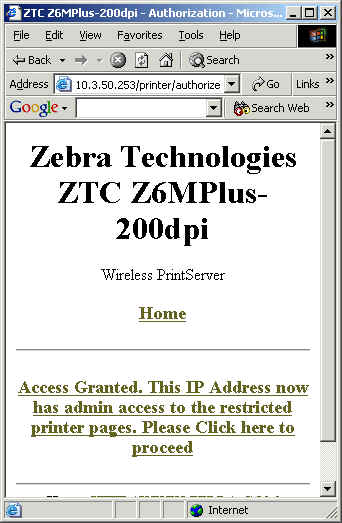
Enter the password. The default is 1234. Then click Submit Changes. You should see:
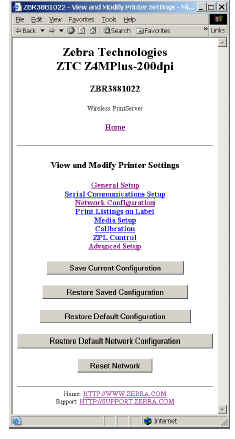
Click Access Granted link to be take to the page you were trying to access. View and Modify Printer Settings:
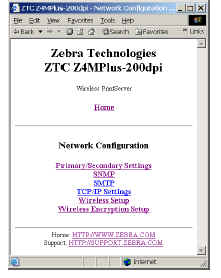
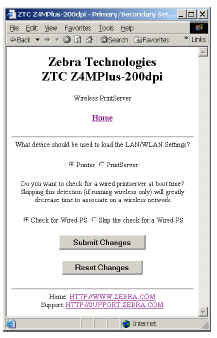
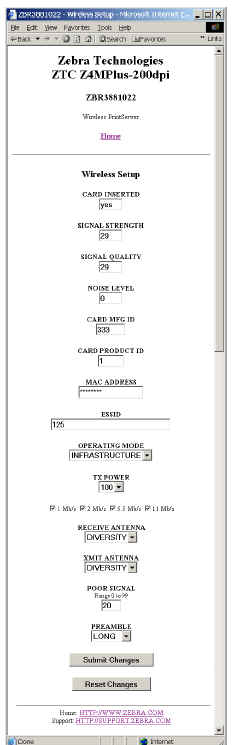
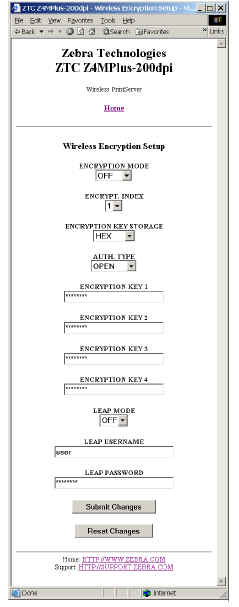
To View settings for the Wireless Print Server select Network Configuration. The choices are: Note: The Wireless Settings and Wireless Encryption Settings can still be accessed if the Wired Print Server is the Primary Device. If no Wireless Option Board is installed Primary/Secondary, Wireless, and Wireless Encryption Settings are not displayed.
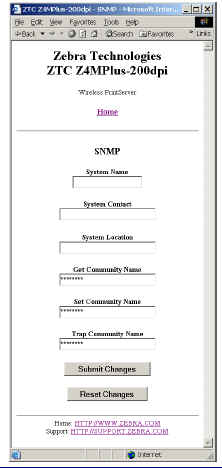
Note: For the Skip the check for Wired PS, if the Printer is set for Parallel Communications - Unidirectional or the ZebraNet Wired Print Server has Bi-Directional Communications disabled the Wired Print Server can still send jobs to the printer. SNMP - Here you can make changes to SNMP Settings.
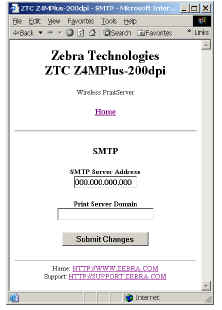
SMTP - Used to set set address of SMTP Server for Email Alerts.
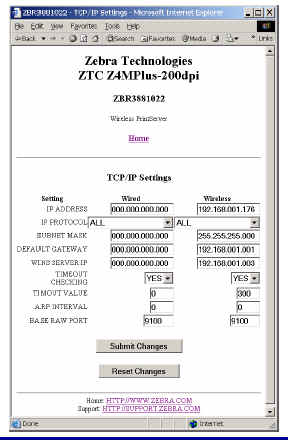
TCP\IP Settings- Displays both Wired and Wireless Network settings.
For full detail on these pages see the ZebraNet Wireless User Guide.
Last Updated 06/07/2004 Notice: Zebra Technologies Corporation makes no representations about the suitability of this documentation for any purpose. It is provided "as is", for your information only, without warranty of any kind, either expressed or implied, including, but not limited to, implied warranties of merchantability, fitness for a particular purpose and non-infringement.
|