Create a Basic Label
To create a basic label, do the following:
1. Open ZebraDesigner.
2. Select New in the File menu, or click on the
icon  in the Standard toolbar.
Each time you create a new label, a Label Setup Wizard starts to help you set up the label and connect to the printer.
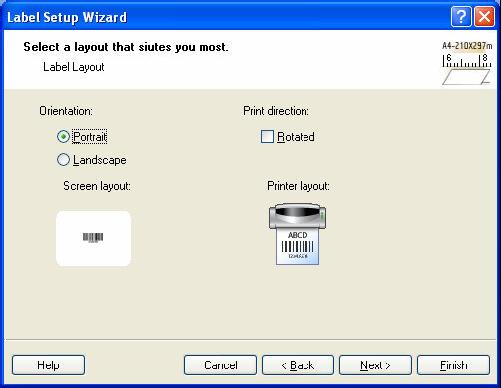
Selecting label layout
Note: You can leave the Wizard at any time and accept the default settings for the label by clicking on the Finish button.
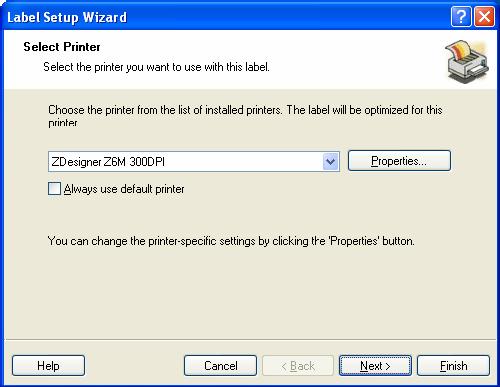
Select a Printer
1. Select the printer you want to use for label printing.
Note: If you don’t find your printer on the list, refer to chapter Install Printer Driver for installation instructions.
2. Click on the Next button.
